Notification Settings — UI Pattern Inspiration

Real examples from PR monitoring & alert tools. Which style feels right for Zentix?

Pattern A: Simple Form / Dialog

A single form/dialog to create an alert. Pick filters, set threshold, choose delivery. One alert at a time.

Brand24
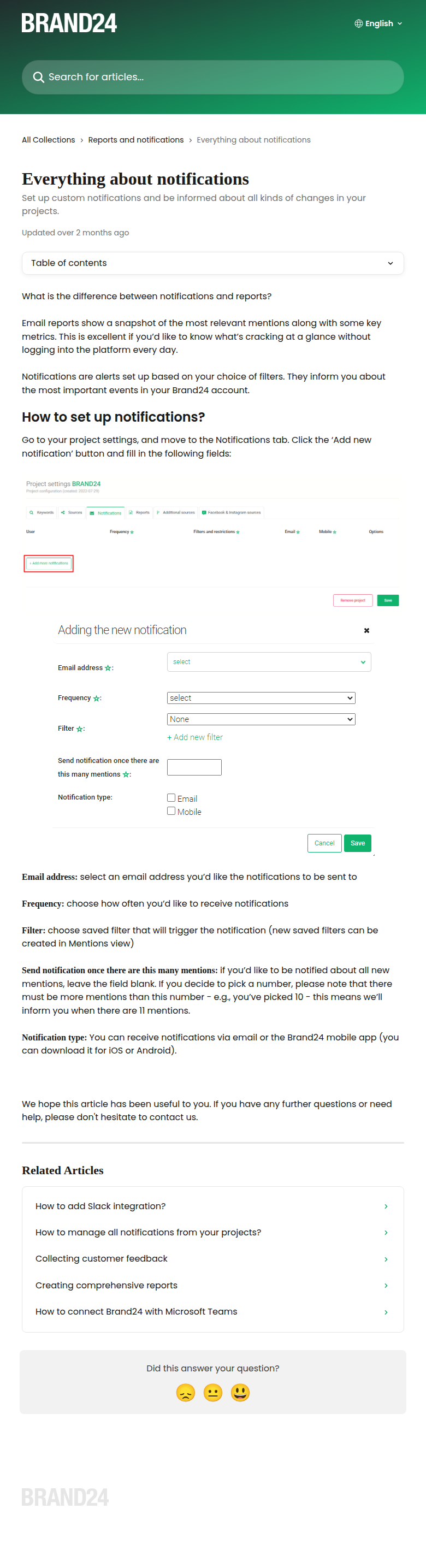
Brand24 — Notification Setup
Brand24 (Social Listening)
Simple Form dialog
Modal form: pick email, frequency, saved filter, min mentions threshold, delivery type (email/mobile). One notification = one filter.
  • Dead simple — 5 fields, done
  • Filter-based: reuse existing saved searches
  • Min mentions threshold prevents noise
  • No visual condition builder
  • Relies on saved filters for complexity
Brand24 Storm
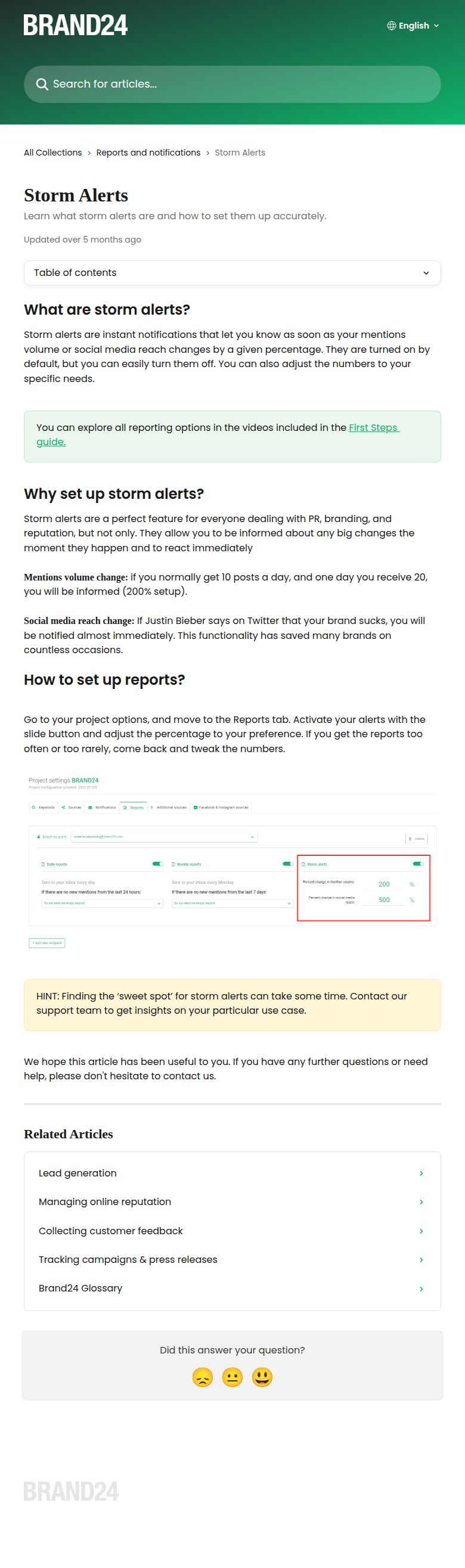
Brand24 — Storm Alerts
Brand24 (Volume Spike Detection)
Simple Slider
Separate section for "storm alerts" — volume spike detection. Just a slider toggle + percentage threshold for mentions volume and social reach changes.
  • Percentage-based thresholds (200%, 500%) — intuitive
  • Single slider per metric — very clean
  • Separate from regular notifications
  • Only volume-based, no sentiment
  • No per-source or per-platform config

Pattern B: Alert List + Create Flow

Table of existing alerts with create/edit/pause actions. Each alert is a separate entity with its own config.

Brandwatch
Brandwatch — Listen Email Alerts
Brandwatch (Consumer Intelligence)
Advanced Step-by-step
Alert list table (name, search, recipients, status, date). Create flow: pick saved search → choose type (volume increase / new mentions) → set frequency → add recipients → set mention count per alert.
  • Table view with pause/edit/delete — great management
  • Two alert types: volume spike vs new mentions
  • Multiple recipients including non-users
  • Clear status (active/paused)
  • Still tied to saved searches for filtering
  • No inline threshold tuning
Meltwater
Meltwater — Alert Configuration
Meltwater (Media Intelligence)
Advanced Multi-channel
Three sensitivity levels (Fewer/Balanced/More) for spike detection. Multi-channel delivery: email, web, mobile, Slack, MS Teams. Customizable frequency (daily/weekly/biweekly/monthly). Per-alert channel selection.
  • Sensitivity presets (Fewer/Balanced/More) — no numbers needed
  • 5 delivery channels with per-alert selection
  • Flexible frequency options
  • Presets hide the actual thresholds
  • Complex UI for less technical users

Pattern C: Condition Builder (Technical)

Visual rule builder with conditions, operators, thresholds. More power, more complexity.

Datadog
Datadog — Monitor Configuration
Datadog (Infrastructure Monitoring)
Advanced Condition builder
Step-by-step monitor creation: 1) Define metric/query 2) Set conditions (above/below threshold + time window) 3) Configure notification (message template + recipients) 4) Set alert/warning thresholds with colored bars. Conditional routing by status.
  • Visual threshold bars (green/yellow/red) — immediate understanding
  • Conditional routing: different recipients per severity
  • Rich message templates with variables
  • Too technical for marketing managers
  • Query-first approach — not user-friendly
SaaS patterns
SaaS Notification Patterns Collection
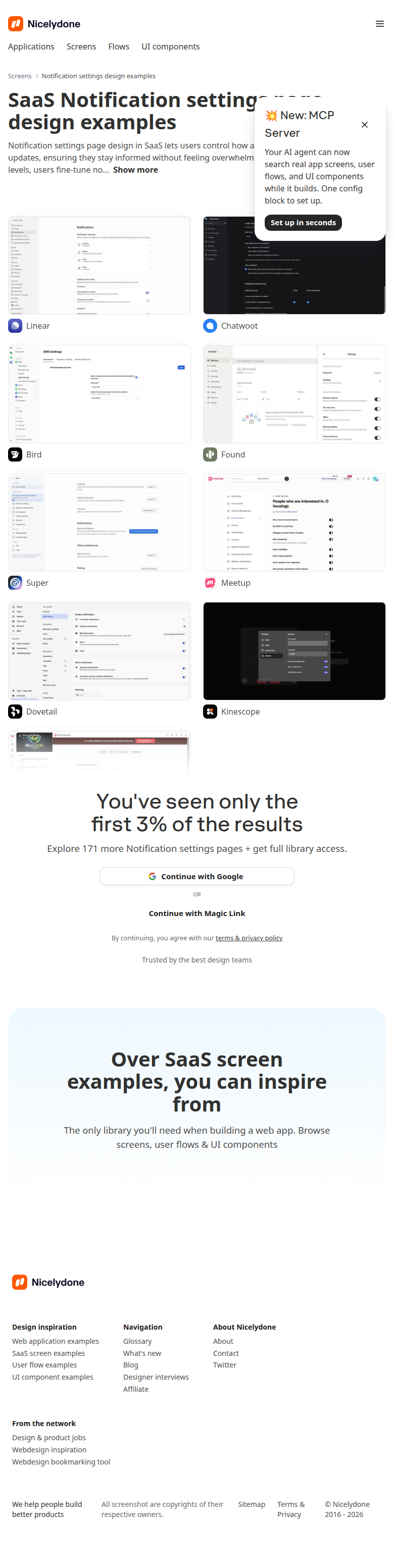
Linear, Chatwoot, Bird, Found, Super, Meetup, Dovetail
Simple Toggle groups
Common SaaS pattern: grouped toggle lists. Categories (e.g., "Marketing", "Sales", "System") with individual toggles per event type. Sometimes with channel selection per toggle (email/push/in-app).
  • Familiar pattern — users know how to use it
  • Category grouping reduces cognitive load
  • Per-channel toggles give control without complexity
  • No threshold tuning — just on/off
  • Doesn't scale for complex condition logic

Which patterns resonate?

Click the cards that feel right (they'll highlight), then tell me in the terminal what you like about them. We can mix patterns — e.g., "toggles like the SaaS pattern for basics, but with Brand24's storm alert sliders for thresholds."